Register for parking in the portal
This article will take your through the different ways you as a parker can register for parking using the Offstreet Portal! The exact experience may vary, but the steps below cover the most common registration options.
Before you begin
To register for parking, you will need:
- QR Code or Portal Link Usually located on signage or provided by the parking admin team directlyStand-alone tablets with the portal are used by some companiesIf no QR code or Portal Link has been provided already, check with company you're trying to register with for further assistance
- Your Licence PlateFormat is ABC123. Any spaces or special characters will automatically be removed when typing or copy and pasting
- Parking access code (If required)
Common Registration Options and Flows
Register by scanning a QR code or navigating to URL manually
-
Scan the QR code using your device's camera and click the link that appears on screen or navigate to the Lookup Link URL manually
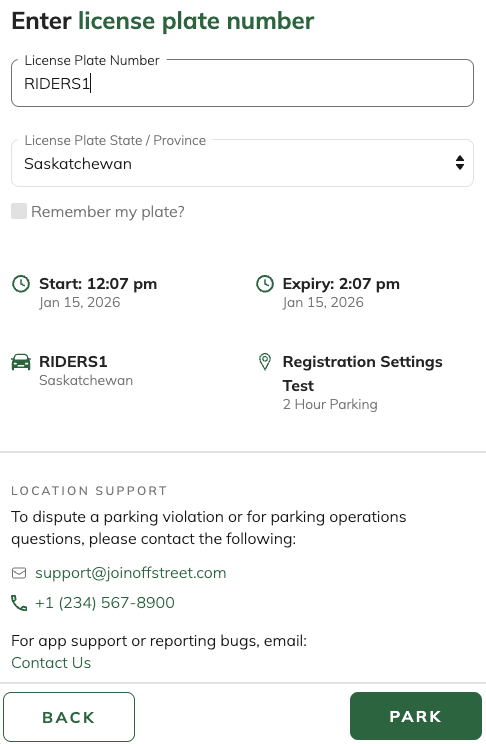
- Enter your Licence Plate, select your State/Province and click PARK or NEXT
- Follow the on-screen prompts to complete registration (eg. Selecting start/end date and times, entering required information like name, employee IDs, etc.)Note: If the NEXT or PARK button is greyed out or not tappable, this means that an action is required. Once the action is complete the NEXT or PARK button will become tappable.
- Tap PARK to complete registration (You'll be automatically taken to the confirmation page)
IMPORTANT: Once at the confirmation page, make sure to enter your email address and tap SEND to email yourself a confirmation receipt that includes registration details!
Register Using a Portal with Multiple Parking Options
Some registration portals have multiple options available after entering your license plate(eg. Hourly Parking and Daily Parking). An option must be selected in order to complete the registration:
- Access the Registration Portal using a QR code or Lookup Link
- Enter your Licence Plate
- Select the appropriate parking option
- Follow the on-screen prompts to complete registration (eg. Selecting start/end date and times, entering required information like name, employee IDs, etc.)
Register Using a Code
If a code is required, it should have been provided to you prior to registering. If you have a reusable code, you can check the usage totals by tapping Code Check at the top of any of your confirmation receipts. This walkthrough goes into more detail: How to Check Your Parking Code Usage
- Access the Registration Portal using a QR code or Lookup Link
- Enter your Licence Plate
- Enter CodeNote: If you do not have a code or are presented with an error after entering the code, make sure you're accessing the right portal or reach out the parking admin team. Contact details are usually located at the bottom of the portal (left hand side if using desktop mode)
- Follow the on-screen prompts to complete registration (eg. Selecting start/end date and times, entering required information like name, employee IDs, etc.)
Register Using a Location Number
If you are given a location number prior to registering:
- Navigate to https://www.offstreet.io/
- Enter Location Number and tap NEXT
- Enter your Licence Plate
- Follow the on-screen prompts to complete registration (eg. Selecting start/end date and times, entering required information like name, employee IDs, etc.)
Confirmation Receipts
Once a registration is completed successfully after tapping PARK you will be redirected to a confirmation page. In order to get emailed a receipt make sure you enter your email address and tap SEND.
If you navigate away from the confirmation page before emailing the receipt, check your browser history for a URL that looks like https://www.offstreet.io/support/confirmation/123456789.
If you still can't find your confirmation receipt, reach out to the Support team here and we'll be happy to send that over!
Register for parking in the Portal
This article will take your through the different ways you as a parker can register for parking using the Offstreet Portal! The exact experience may vary, but the steps below cover the most common registration options.
Before you begin
To register for parking, you will need:
- QR Code or Portal Link- Usually located on signage or provided by the parking admin team directly- Stand-alone tablets with the portal are used by some companies- If no QR code or Portal Link has been provided already, check with company you're trying to register with for further assistance
- Your Licence Plate- Format is ABC123. Any spaces or special characters will automatically be removed when typing or copy and pasting
- Parking access code (If required)
Common Registration Options and Flows
Register by scanning a QR code or navigating to URL manually
-
Scan the QR code using your device's camera and click the link that appears on screen or navigate to the Lookup Link URL manually
- Enter your Licence Plate, select your State/Province and click PARK or NEXT
- Follow the on-screen prompts to complete registration (eg. Selecting start/end date and times, entering required information like name, employee IDs, etc.)Note: If the NEXT or PARK button is greyed out or not tappable, this means that an action is required. Once the action is complete the NEXT or PARK button will become tappable.
- Tap PARK to complete registration (You'll be automatically taken to the confirmation page)
IMPORTANT: Once at the confirmation page, make sure to enter your email address and tap SEND to email yourself a confirmation receipt that includes registration details!
Register Using a Portal with Multiple Parking Options
Some registration portals have multiple options available after entering your license plate(eg. Hourly Parking and Daily Parking). An option must be selected in order to complete the registration:
- Access the Registration Portal using a QR code or Lookup Link
- Enter your Licence Plate
- Select the appropriate parking option
- Follow the on-screen prompts to complete registration (eg. Selecting start/end date and times, entering required information like name, employee IDs, etc.)
Register Using a Code
If a code is required, it should have been provided to you prior to registering. If you have a reusable code, you can check the usage totals by tapping Code Check at the top of any of your confirmation receipts. This walkthrough goes into more detail: How to Check Your Parking Code Usage
- Access the Registration Portal using a QR code or Lookup Link
- Enter your Licence Plate
- Enter Code
- Follow the on-screen prompts to complete registration (eg. Selecting start/end date and times, entering required information like name, employee IDs, etc.)
Register Using a Location Number
If you are given a location number prior to registering:
- Navigate to https://www.offstreet.io/
- Enter Location Number and tap NEXT
- Enter your Licence Plate
- Follow the on-screen prompts to complete registration (eg. Selecting start/end date and times, entering required information like name, employee IDs, etc.)
Confirmation Receipts
Once a registration is completed successfully after tapping PARK you will be redirected to a confirmation page. In order to get emailed a receipt make sure you enter your email address and tap SEND.
If you navigate away from the confirmation page before emailing the receipt, check your browser history for a URL that looks like https://www.offstreet.io/support/confirmation/123456789.
If you still can't find your confirmation receipt, reach out to the Support team here and we'll be happy to send that over!
Was this article helpful?
That’s Great!
Thank you for your feedback
Sorry! We couldn't be helpful
Thank you for your feedback
Feedback sent
We appreciate your effort and will try to fix the article