Understanding Advanced Time Rules
The Flexible Time builder allows you to create dynamic parking rules where start and end times can vary based on user input or predefined conditions.
This article explains each rule in the Flexible Time builder and how they work together.
How Flexible Time Works
Flexible time is made up of two parts:
- Start Rules → When the permit begins
- Expiry Rules → When the permit ends
Each part can be configured independently to create simple or advanced behaviors.
Dates and Times
Start Rules
Start rules determine when a permit becomes active.
User Selects
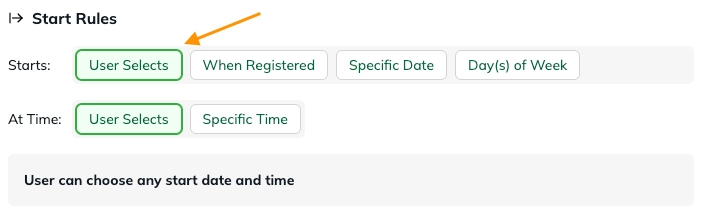
Allows the parker to choose their own start date and/or time.
- Most flexible option
- Common for visitor or short-term parking
Example: A user selects a start time of 2:00 PM
When Registered
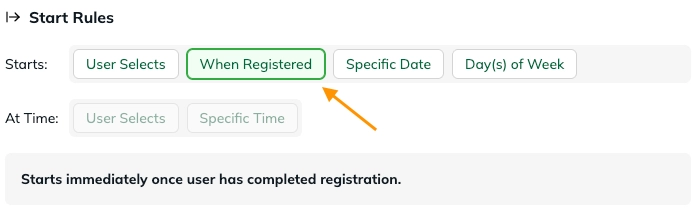
The permit starts immediately when the user completes registration.
- No user input required
- Best for instant-use permits
Example: User registers at 10:03 AM → permit starts at 10:03 AM
Specific Date
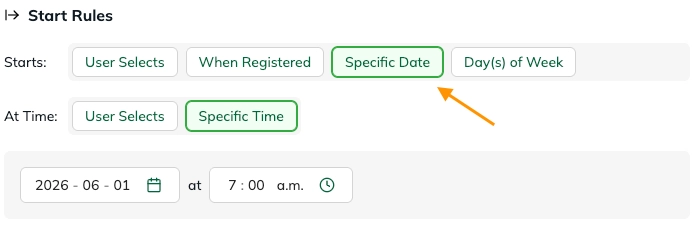
A fixed start date.
- Same start for all users
- Useful for events or scheduled access
Example: Permit always starts on June 1
Day(s) of Week
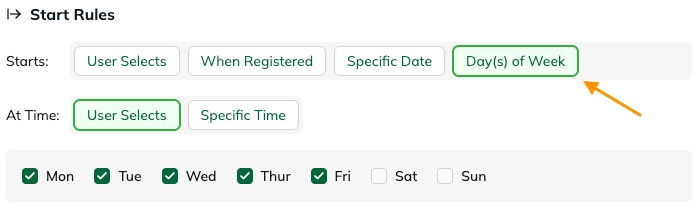
Allows permits to start only on selected days.
- Restricts when users can begin parking
- Can be combined with time rules
Example: Users can only start parking on weekdays
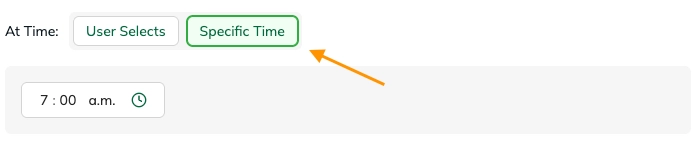
Start Time Options
You can also control the time of day:
User Selects → user chooses time

Specific Time → fixed time for all users
Expiry Rules
Expiry rules determine when the permit ends.
User Selects
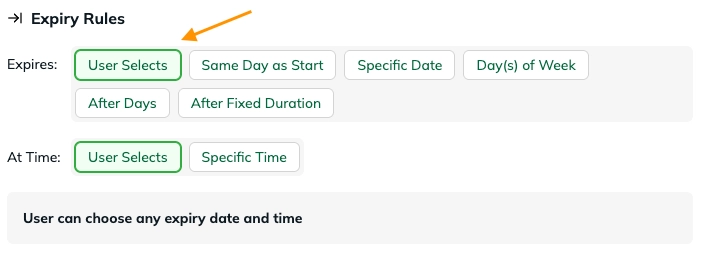
Allows the parker to choose their own end date and/or time.
- Works well with flexible start times
- Useful when duration is not fixed
Same Day as Start
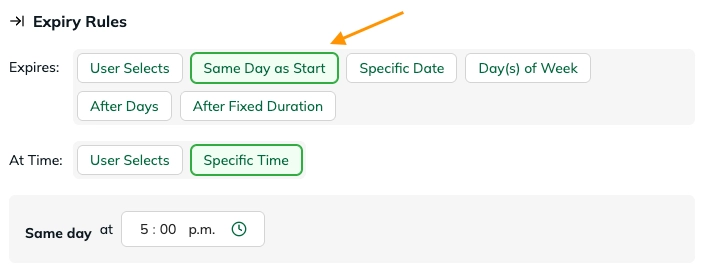
The permit expires on the same day it starts.
- Often combined with a specific end time
Example: Start at 9:00 AM → expires at 5:00 PM
Specific Date
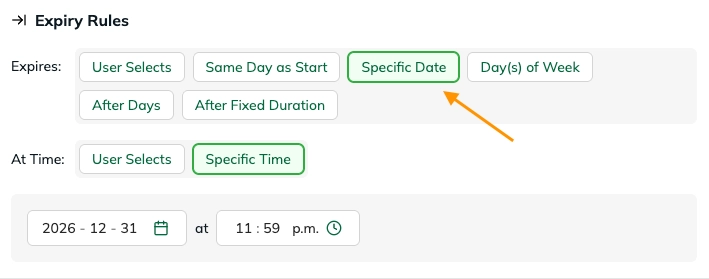
Permit ends on a fixed date.
- Same expiry for all users
Example: All permits expire on December 31
Day(s) of Week
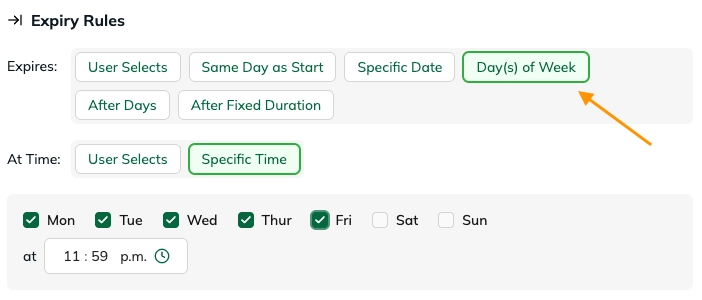
Allows permits to expire only on selected days.
- Restricts when users can end parking
- Can be combined with time rules
Example: Users can only expire parking on weekdays
After Days
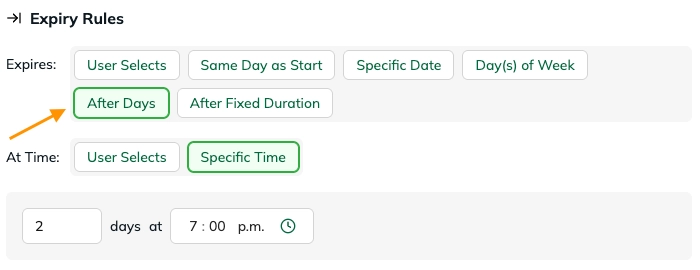
Permit expires after a set number of days from the start.
Example: Starts June 1 → expires June 3 (2 days later)
After Fixed Duration
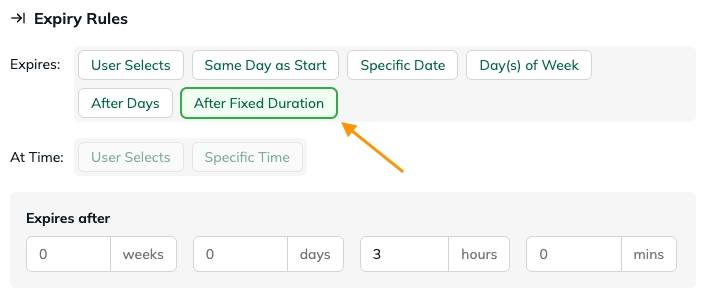
Permit expires after a defined duration.
Example: Starts at 2:00 PM → expires 3 hours later
Expiry Time Options
Like start rules, you can control the time:
User Selects
Specific Time
Additional Restrictions
These rules refine how start and expiry rules behave.
Time Increments
Controls what time intervals users can select.

- Example:
- 15-minute increments
- 30-minute increments
Prevents arbitrary time selection.
Min / Max Duration
Sets limits on how short or long a permit can be.
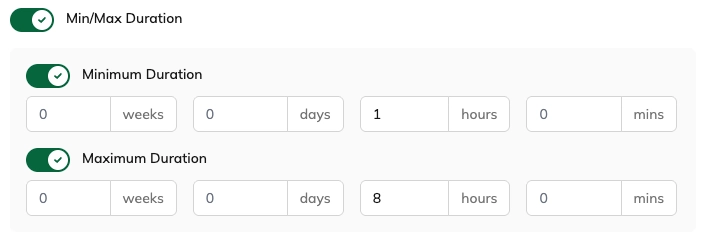
Example:
- Minimum: 1 hour
- Maximum: 8 hours
Date Window
Restricts the range of dates that can be selected for start and expiry.
This allows you to control the earliest and latest allowable dates for a permit, rather than limiting when users can register.
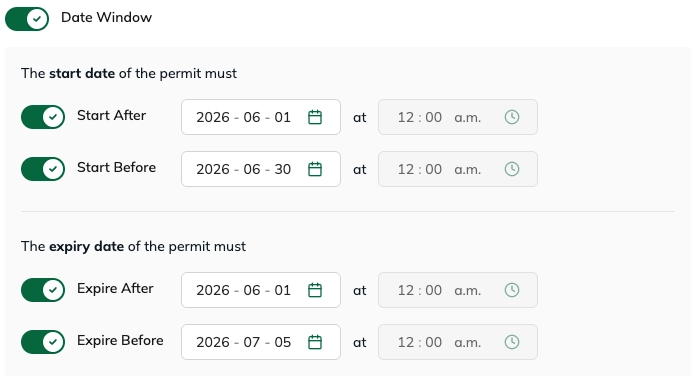
You can define:
- Earliest start date
- Latest start date
- Earliest expiry date
- Latest expiry date
This ensures all selected dates fall within a specific allowed range.
Example:
- Start date must be between June 1 and June 30
- Expiry date must be between June 1 and July 5
Users can only select dates within these boundaries.
Time Window (Daily)
Restricts time selection within each day.
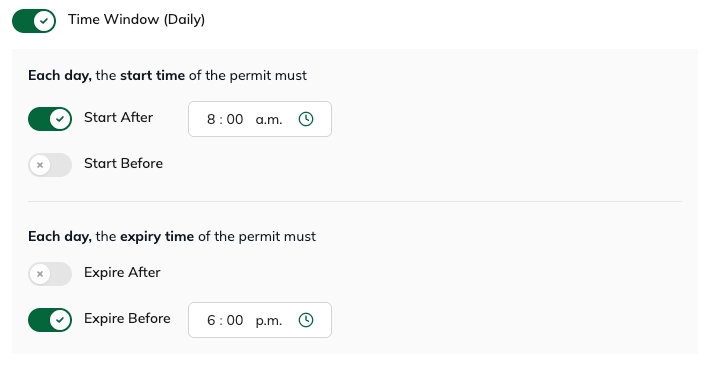
Example: Only allow parking between 8:00 AM – 6:00 PM
Availability & Timing Rules
Limit when users can register for this option
Controls when users are allowed to create a permit.
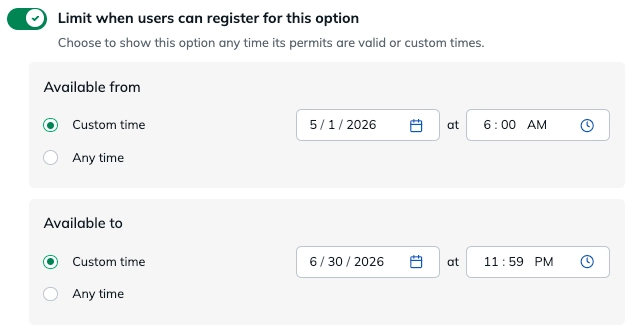
This is separate from when the permit is valid.
Example:
- Users can only register between May 1–June 30
- But parking may occur later
Schedule recurring availability
Use Schedule recurring availability to control the recurring days and times when users are allowed to register for the parking option.
You can choose from two schedule types:
- Daily: Apply the same start and end time every day.
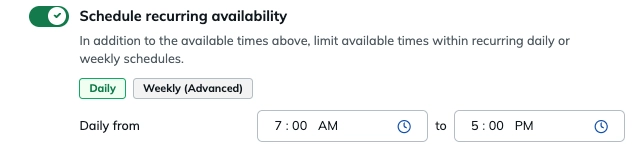
- Weekly (Advanced): Choose specific days of the week and set a start and end time for each day. This is useful when availability varies throughout the week.
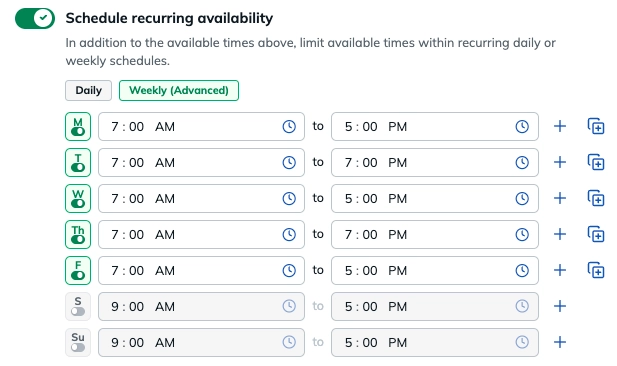
Example: Allow permit registrations from 7:00 AM–5:00 PM Monday through Friday, with different hours on certain days.
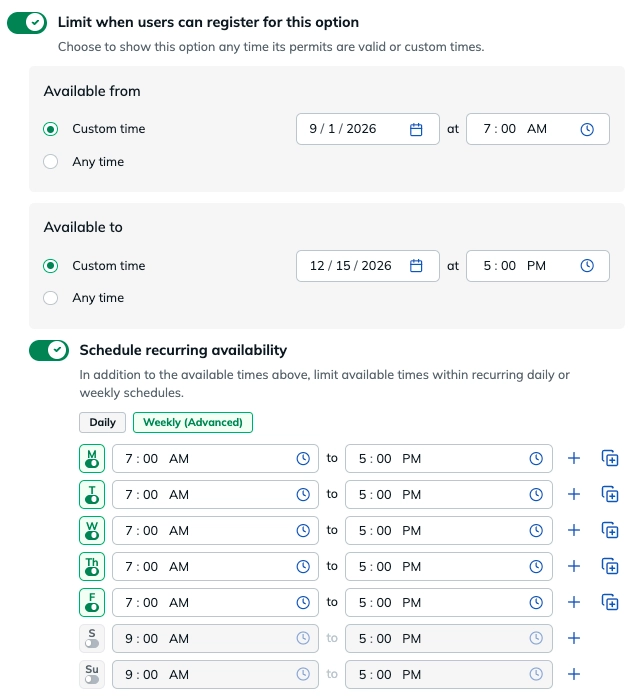
You can also combine the recurring schedule with Available from and Available to dates and times. These create overall boundaries for availability, while the recurring schedule controls availability within that period.
Example: Make permit registration available from September 1–December 15, but only Monday–Friday from 7:00 AM–5:00 PM.
→ Learn more about Recurring Availability Windows
Override Default Start and Expiry Times
Use Override default start and expiry times to pre-fill the start and/or expiry time that users see when registering for a permit.
This works with User Selects start and expiry time rules. Instead of requiring the user to enter a time from scratch, the configured default is automatically populated in the Portal and Dashboard.
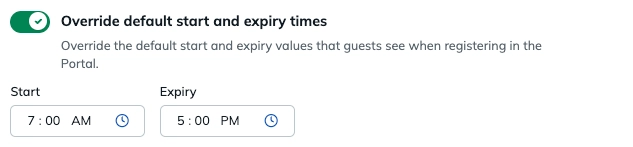
When a user begins registration, these times will already be entered for them.
The pre-filled times are not locked. Users can still select a different time if needed, and their selection will take precedence over the default.
If Override default start and expiry times is turned off, user-selectable time fields will return to being blank and users will need to select a time during registration.
When to use it: This is helpful when most users typically select the same start or expiry time, but you still want to give them the flexibility to choose something different.
Minimum Time Between Permits for Each Guest
Use Minimum time between permits for each Guest to require a waiting period between one permit ending and the next permit starting for the same vehicle.
This rule is applied per vehicle/license plate. If the same plate already has a permit, its next permit cannot begin until the configured amount of time has passed after the previous permit ends.
You can set the minimum gap in:
- Minutes
- Hours
- Days
Example: If the minimum time is set to 2 hours and a vehicle's permit expires at 1:00 PM, that same license plate cannot start another permit for this Permit Type until 3:00 PM.
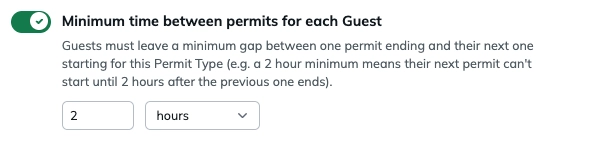
If a parker attempts to register the vehicle for another permit that starts before the minimum waiting period has passed, the registration will be blocked. The parker will see a message explaining the required amount of time between permits and will need to choose an eligible start time before registering again.
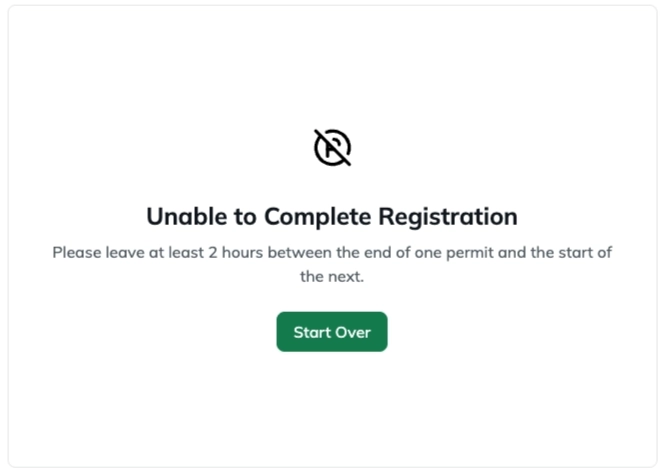
When to use it: This is helpful when you want to prevent the same vehicle from immediately registering for consecutive permits, while still allowing it to register again after a defined amount of time.
How Rules Work Together
Flexible time rules combine to define:
When a permit can start + when it must end + what constraints apply
Example Configuration
- Start: User selects
- Expiry: After 2 hours
- Time window: 8:00 AM – 6:00 PM
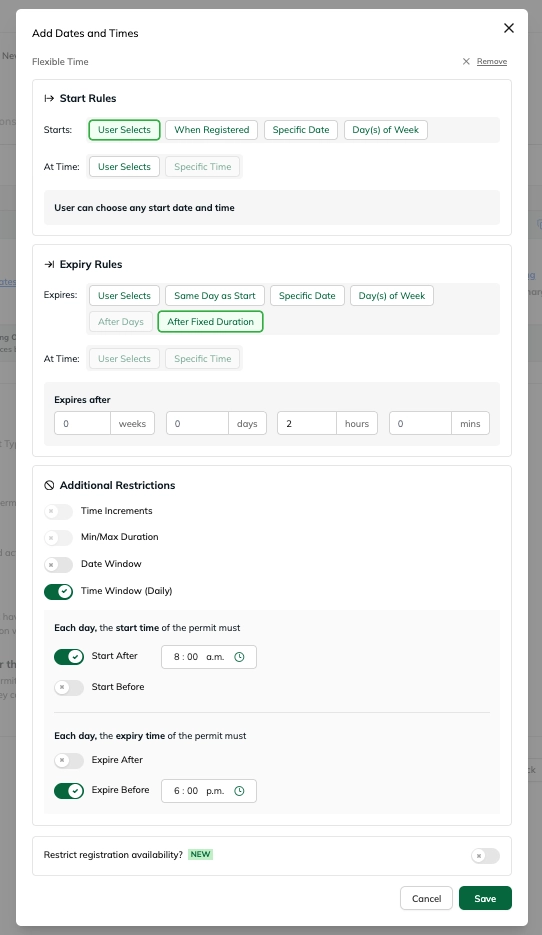
Result: Users can pick any start time during the day, and the permit lasts exactly 2 hours.
Common Use Cases
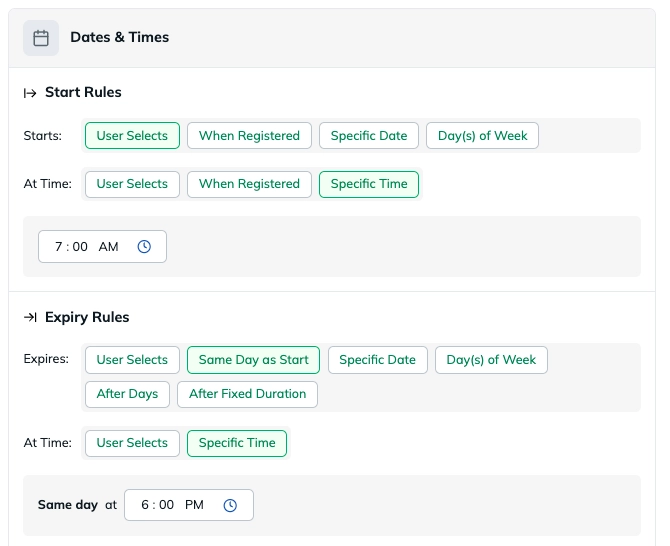
Visitor Day Parking
- Starts: User Selects
- At Time: Specific Time (e.g., 7:00 AM)
- Expires: Same Day as Start
- At Time: Specific Time (e.g., 6:00 PM)
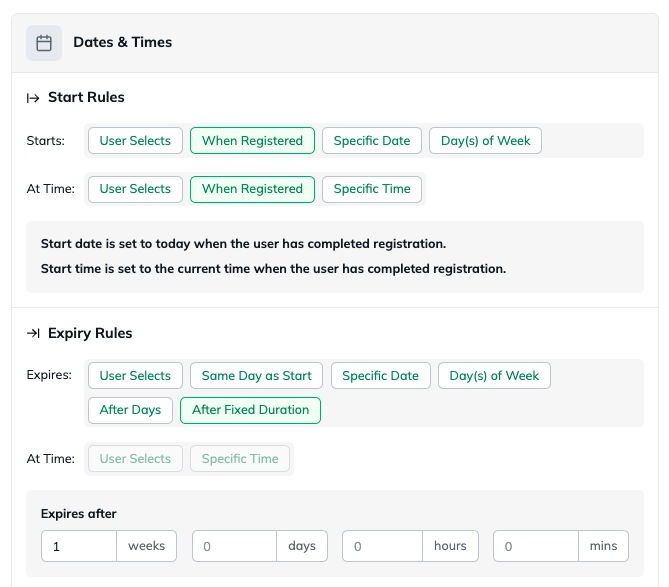
Employee Parking
- Starts: When Registered
- Expires: After Fixed Duration (e.g., 1 Week)
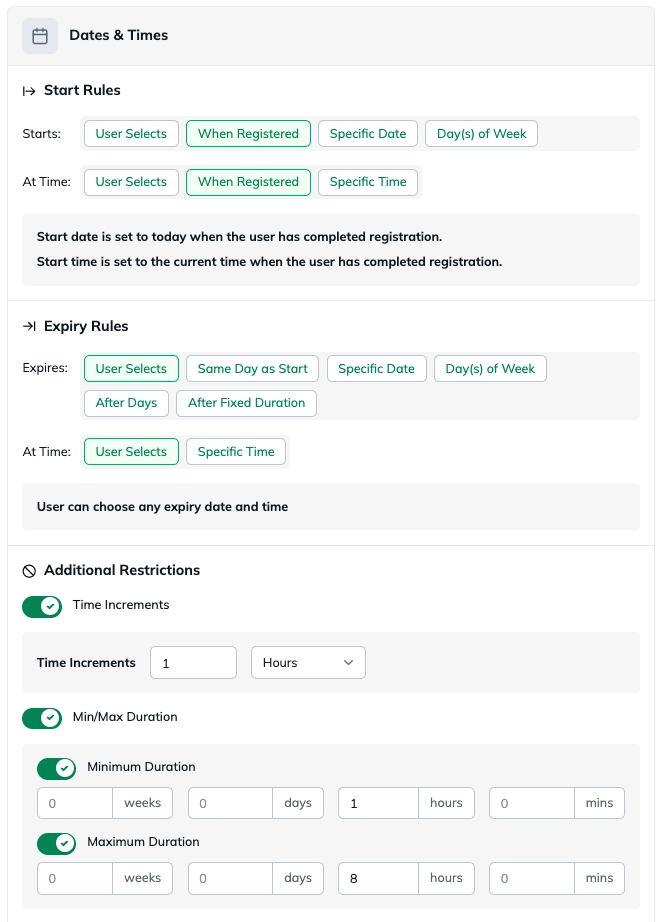
Hourly Parking
- Starts: When Registered
- Expires: User Selects
- At Time: User Selects
- Time Increments enabled: 1 Hour
- Min/Max duration enabled: Minimum 1 Hour, Maximum 8 Hours
Summary
Flexible Time allows you to:
- Give users control over start and end times
- Enforce structured rules and limits
- Support a wide range of parking scenarios
Flexible Time becomes most powerful when you start combining multiple rules together.
By combining start rules, expiry rules, and restrictions, you can create both simple and highly customized parking experiences.
Was this article helpful?
That’s Great!
Thank you for your feedback
Sorry! We couldn't be helpful
Thank you for your feedback
Feedback sent
We appreciate your effort and will try to fix the article