View active vehicles
The Active Vehicles report lets you search and export the active vehicles at a location.
How to View Active Vehicles
Go to Reporting → Active Vehicles, then:
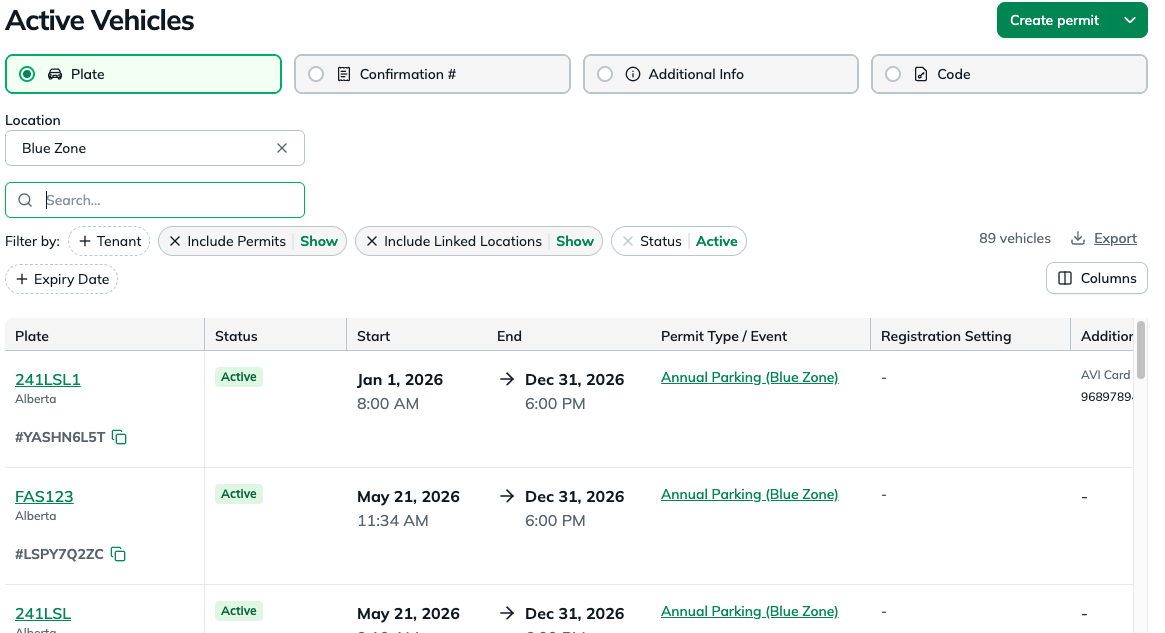
- Choose a location. To narrow the results, select one or more tenants.
- Search by Plate, Confirmation #, Additional Info, or Code.
- Refine the list with the filters: Tenant, Include Permits, Include Linked Locations (shown when it applies to your location), Status, and Expiry Date.
- Review the results. The columns are Plate, Status, Start, End, Permit Type / Event, Registration Setting, Additional Info, and Code.
- Click Export to download the list as a CSV, XLS, or XLSX file.
Was this article helpful?
That’s Great!
Thank you for your feedback
Sorry! We couldn't be helpful
Thank you for your feedback
Feedback sent
We appreciate your effort and will try to fix the article